> For the complete documentation index, see [llms.txt](https://docs.quanti.io/llms.txt). Markdown versions of documentation pages are available by appending `.md` to page URLs; this page is available as [Markdown](https://docs.quanti.io/connectors/sales-analytics-connectors/shopify.md).
# Shopify
Follow our setup guide to connect Shopify to QUANTI.
Prebuilt reports and definition
***
## Prerequisites
Before connecting Shopify to QUANTI, ensure you have:
* **Shopify Store**: An active Shopify store with admin access
* **Admin Permissions**: Store Owner or Staff account with full permissions
* **Custom App Access**: Ability to create and install custom apps in your Shopify store
* **Store Data**: Existing orders, products, or customer data to synchronize
***
## Setup Instructions
{% stepper %}
{% step %}
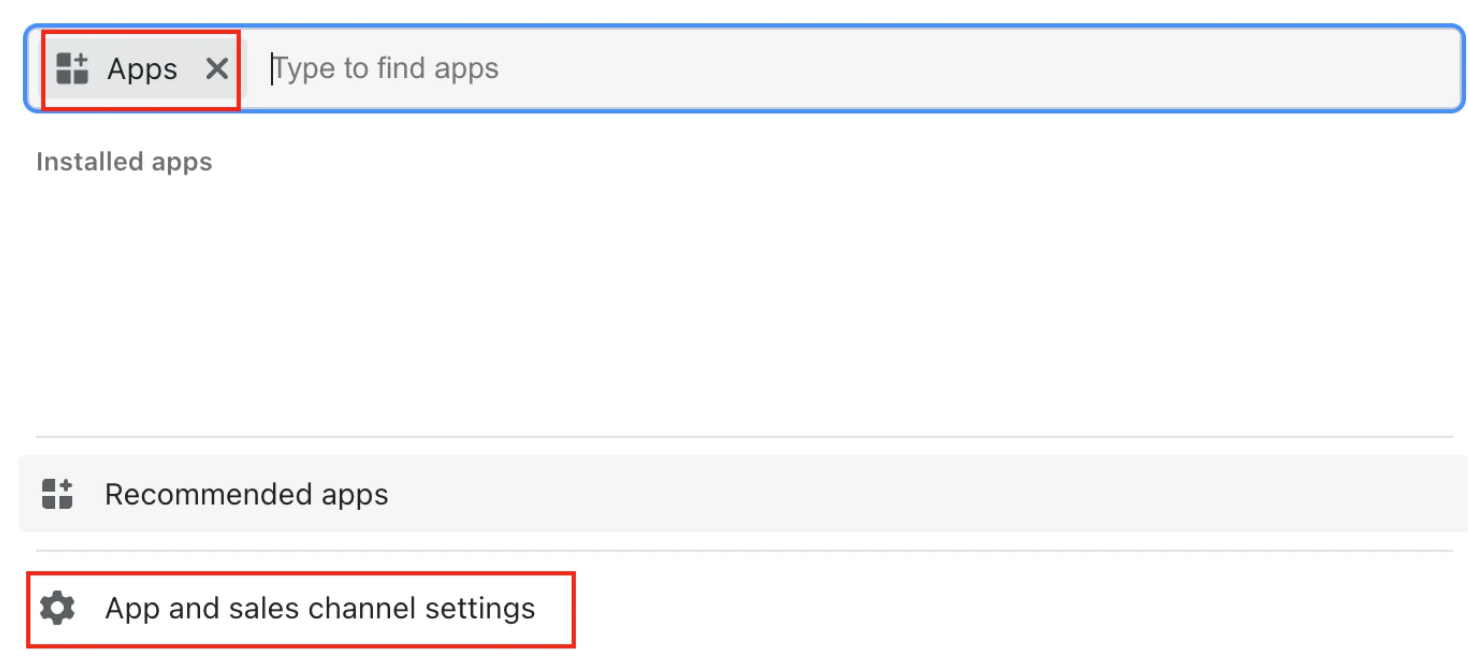
**Enable custom app development**
* Log in to your Shopify admin
* Go to **Settings** > **Apps and sales channels**
* Click **Develop apps**
* Click **Allow custom app development** (if not already enabled)
* Confirm by clicking **Allow custom app development**
{% endstep %}
{% step %}
**Create a custom app**
* Click **Create an app**
* Enter an app name (e.g., "QUANTI Connector")
* Select an app developer from the dropdown ()
* Click **Create app**
{% endstep %}
{% step %}
**Configure Admin API scopes**
* Click **Configure Admin API scopes**
* Select the following read access scopes:
| Scope | Description |
| -------------------------------- | ---------------------------- |
| `read_all_orders` | Access to all orders history |
| `read_products` | Products catalog |
| `read_customers` | Customer data |
| `read_inventory` | Inventory levels |
| `read_locations` | Store locations |
| `read_fulfillments` | Fulfillment data |
| `read_draft_orders` | Draft orders |
| `read_price_rules` | Price rules and discounts |
| `read_discounts` | Discount codes |
| `read_shipping` | Shipping settings |
| `read_returns` | Returns data |
| `read_shopify_payments_payouts` | Payout data |
| `read_shopify_payments_disputes` | Payment disputes |
* Click **Save**
{% hint style="info" %}
Shopify Plus only: The `read_gift_cards` and `read_users` scopes are available only for Shopify Plus accounts.
{% endhint %}
{% endstep %}
{% step %}
**Install the app and get your API token**
* Click **Install app**
* Confirm by clicking **Install**
* In the **API credentials** tab, click **Reveal token once**
* **Copy and save your Admin API access token** — it will only be shown once
{% hint style="warning" %}
Store this token securely. If lost, you'll need to uninstall and reinstall the app to generate a new one.
{% endhint %}
{% endstep %}
{% step %}
**Find your shop name**
Your shop name is the part before `.myshopify.com` in your store URL.
Example: If your URL is `mystore.myshopify.com`, your shop name is `mystore`.
{% endstep %}
{% step %}
**Connect to QUANTI**
* In QUANTI, click on **Connect to Shopify**
* Enter your **Shop Name** (without .myshopify.com)
* Paste your **Admin API access token**
* Click **Validate** to verify the connection
* Click **Next**
{% endstep %}
{% step %}
**Select Prebuilt reports**
* Review the available Prebuilt reports (see section below for details)
* All tables are selected by default - you can deselect tables you don't need
* Recommended: Keep all tables enabled for complete e-commerce data tracking
* Click **Next**
{% endstep %}
{% step %}
**Connector Information**
* **Connector Name**: Define a unique name for your connector
* **Dataset ID**: Specify the BigQuery dataset ID where tables will be created
* The dataset will be created automatically if it doesn't exist
* Click **Next**
{% endstep %}
{% step %}
**Finish setup**
* Define a sync period and a lookback window - Click save
* For the first sync, you have the following options:
* Activate auto-sync for recurring syncs based on your sync settings by clicking the switch button
* Launch a historical data recovery by choosing your desired dates in the historical data tab
* Launch a manual sync immediately by clicking the Sync now button
* Wait for the sync to complete. Then navigate to your data warehouse to verify that tables are populated
* Check the connector dashboard for sync status and any potential errors
{% endstep %}
{% endstepper %}
***
## Prebuilt reports
#### Configuration & Reference Tables
* **Shop**: Configuration table containing general information about the Shopify store: identity, geographic location, currencies, tax settings, and enabled features. All data is read-only and represents the current state of the store. Includes store identification (id, name, domains), geographic details (address, city, country, coordinates), financial configuration (currency, payment settings), and store capabilities (discounts, gift cards, storefront).
* **Product**: Product catalog with descriptions, categories, and merchandising attributes. Contains core product information including title, handle (URL slug), vendor, product type, publication status, timestamps (created, updated, published), full HTML description, and tags for organization and filtering. Also includes a `metafields` column — a JSON array of custom product metafields, each entry shaped as `{"namespace": ..., "key": ..., "value": ..., "type": ...}`. For complex types, the value is itself a JSON-encoded string. Capped at the first 250 metafields per product (Shopify API limit). Essential for product performance analysis, catalog management, and custom attribute enrichment.
* **Product Variant**: Product variants with SKU, pricing, inventory, and option configurations. Each variant represents a specific combination of product options (size, color, etc.) with unique SKU, title, pricing (price and compare\_at\_price for discounts), inventory tracking details, and links to both parent product and inventory item for stock management.
* **Locations**: Physical warehouse and store locations for inventory management. Contains location details including name, address components (address1, address2, city, province, zip, country), location status (active/inactive), and legacy flag. Used as dimension for multi-location inventory analysis and fulfillment optimization.
* **Inventory Items**: Physical inventory items with SKU, cost details, and logistics attributes. Contains item-level data including SKU identifier, unit cost for margin calculations, origin information (country and province codes), harmonized system code for customs, inventory tracking settings, shipping requirements flag, and lifecycle timestamps. Critical for cost analysis, margin calculation, and customs compliance.
* **Return Line Item**: Return line items with customer notes and return reasons. Contains detailed return request information including customer notes, quantity details (refundable, refunded, processable, processed, unprocessed), return reason codes, and reason notes for qualitative analysis of product issues and return patterns.
#### Transactional Tables
* **Order**: Central transactional table capturing the complete order lifecycle: creation, payment, shipping, cancellation, and refund. Contains customer data, financial amounts (prices, taxes, discounts), payment and fulfillment statuses, marketing attribution information (landing\_site, referring\_site), and promotional codes used. Includes lifecycle timestamps (created\_at, updated\_at, processed\_at) and comprehensive status tracking.
* **Order Line**: Transactional table detailing each product/variant purchased in an order. Contains product information (SKU, title, variant), financial data (itemized prices, distributed discounts, taxes), and logistics status (fulfillment, shipped quantities). Enables granular product-level performance analysis and revenue attribution by SKU.
* **Transaction**: Payment transactions with authorization and settlement details. Tracks individual payment operations including transaction type (sale, refund, authorization), payment gateway identifier, authorization code, amount, currency, payment status, and timestamps. Essential for payment reconciliation and gateway performance analysis.
* **Refund**: Refund transactions with adjustments and financial details. Contains refund-level information including refund timestamps, shipping refund amounts, total refund value, refund line items, and notes explaining the refund reason. Links to parent order for complete financial lifecycle tracking.
* **Refund Line**: Refund line items with product details and refunded amounts. Details each refunded product including line item identifier, quantity refunded, refund type (full/partial), restock status, location where restocked, and subtotal refunded amount. Enables SKU-level refund analysis.
* **Return**: Return requests with status and financial outcome details. Tracks customer return requests including return status (open, in\_transit, received, declined), decline reason if applicable, total return amount, and timestamps. Essential for return rate analysis and operational efficiency tracking.
* **Daily Inventory Snapshot**: Historical fact table tracking daily inventory levels across multiple states for stock evolution analysis. Captures daily snapshots with snapshot\_date as partition key, inventory quantities across all states (available, on\_hand, committed, reserved, incoming, damaged, quality\_control, safety\_stock), and last update timestamp. Enables stockout detection, stock evolution trends, replenishment planning, and inventory health monitoring across locations.
```mermaid
erDiagram
shop {
TIMESTAMP _quanti_loaded_at PK
BIGINT id PK
STRING name
STRING domain
STRING currency
STRING country_code
}
product {
TIMESTAMP _quanti_loaded_at PK
STRING id PK
STRING title
STRING vendor
STRING product_type
STRING status
STRING tags
STRING metafields
}
product_variant {
TIMESTAMP _quanti_loaded_at PK
STRING id PK
STRING product_id PK
STRING inventory_item_id PK
STRING sku
DECIMAL price
INTEGER inventory_quantity
}
inventory_items {
TIMESTAMP _quanti_loaded_at PK
STRING id PK
STRING sku
DECIMAL cost
BOOLEAN tracked
}
locations {
TIMESTAMP _quanti_loaded_at PK
STRING id PK
STRING name
STRING city
STRING country
BOOLEAN active
}
return_line_item {
TIMESTAMP _quanti_loaded_at PK
STRING id PK
INTEGER quantity
STRING return_reason
}
order {
DATE _quanti_date PK
BIGINT id PK
STRING financial_status
STRING fulfillment_status
DECIMAL total_price
DECIMAL total_discounts
STRING currency
BIGINT customer_id
STRING customer_email
STRING source_name
}
order_line {
DATE _quanti_date PK
BIGINT order_id PK
BIGINT product_id PK
STRING sku
INTEGER quantity
DECIMAL price
DECIMAL total_discount
}
transaction {
DATE _quanti_date PK
BIGINT id PK
BIGINT order_id PK
DECIMAL amount
STRING currency
STRING gateway
STRING kind
STRING status
}
refund {
DATE _quanti_date PK
BIGINT id PK
BIGINT order_id PK
STRING note
BOOLEAN restock
}
refund_line {
DATE _quanti_date PK
BIGINT id PK
BIGINT refund_id PK
BIGINT line_item_id PK
INTEGER quantity
DECIMAL subtotal
}
return {
DATE _quanti_date PK
STRING id PK
STRING order_id PK
STRING status
INTEGER total_quantity
}
daily_snapshot {
DATE _quanti_date PK
DATE snapshot_date PK
STRING inventory_item_id PK
STRING location_id PK
INTEGER available
INTEGER on_hand
INTEGER committed
INTEGER reserved
}
product ||--o{ product_variant : "product_id"
product ||--o{ order_line : "product_id"
inventory_items ||--o{ product_variant : "inventory_item_id"
inventory_items ||--o{ daily_snapshot : "inventory_item_id"
locations ||--o{ daily_snapshot : "location_id"
order ||--o{ order_line : "order_id"
order ||--o{ transaction : "order_id"
order ||--o{ refund : "order_id"
order ||--o{ return : "order_id"
refund ||--o{ refund_line : "refund_id"
order_line ||--o{ refund_line : "line_item_id"
return ||--o{ return_line_item : "id"
```
***
Prebuilt reports and definition
***
## Notes
* **Data Refresh**: Shopify data can be synchronized multiple times per day
* **Historical Data**: Full historical data is available with no API limitations on date ranges
* **Order Data**: Orders include complete financial details including line items, shipping, taxes, and discounts
* **Multi-Currency**: If your store uses Shopify Payments with multi-currency, amounts will be in the presentment currency
* **Metafields**: Product metafields are now natively included in the `product` table as a JSON array. For other resource types (orders, customers, variants), metafields can be added upon request
* **API Rate Limits**: Shopify enforces rate limits based on your plan tier (Basic: 2 req/s, Shopify: 4 req/s, Advanced/Plus: 10 req/s). QUANTI automatically manages these limits
* **Deleted Records**: Deleted products, orders, or customers can be tracked if enabled in sync settings
* **GraphQL vs REST**: The connector uses Shopify's Admin API (REST) for maximum compatibility
* **Webhooks**: Real-time webhook support can be configured for instant updates on order creation/updates
* **Privacy**: Customer data complies with GDPR and privacy regulations
***
## Troubleshooting
Connection Issues
* Verify that custom app development is enabled in your Shopify admin
* Ensure the Admin API access token is valid and hasn't been regenerated
* Check that all required API scopes are granted to the custom app
* Verify your shop name is correct (without .myshopify.com)
* Ensure the app is installed and active in your Shopify admin
Missing Data
* Check that the required API scopes are enabled (e.g., `read_all_orders` for orders)
* Verify that data exists in your Shopify store for the selected date range
* Draft or archived orders may require specific scopes to be included
* Shopify Plus features (gift cards, users) require a Plus subscription
* Check date filters in your sync configuration
Rate Limit Issues
* QUANTI automatically manages rate limits, but high-frequency syncs may be throttled
* Consider adjusting sync frequency for stores with large order volumes
* Shopify Plus accounts have higher rate limits (10 req/s vs 2-4 req/s)
* Historical data recovery for large stores may take several hours
Token Issues
* If your Admin API access token is lost, you must uninstall and reinstall the custom app to generate a new one
* Access tokens don't expire but can be revoked if the app is uninstalled
* Store tokens securely and never share them publicly
* If token appears invalid, verify it wasn't regenerated in Shopify admin
Data Discrepancies
* Verify that orders aren't filtered by fulfillment or payment status
* Check timezone settings between Shopify and your analysis tools
* Ensure currency conversions are handled correctly for multi-currency stores
* Compare order totals including taxes and shipping
* Draft orders are separate from completed orders
Need Help?
Contact QUANTI support at or consult our comprehensive documentation at [https://docs.quanti.io](https://docs.quanti.io/)